Most of the people who set up fresh Windows 11 often wonder why their system feels slow. It is a lightweight PowerShell script to remove bloatware, disable telemetry, and clean up intrusive features like Bing search integration and widgets.
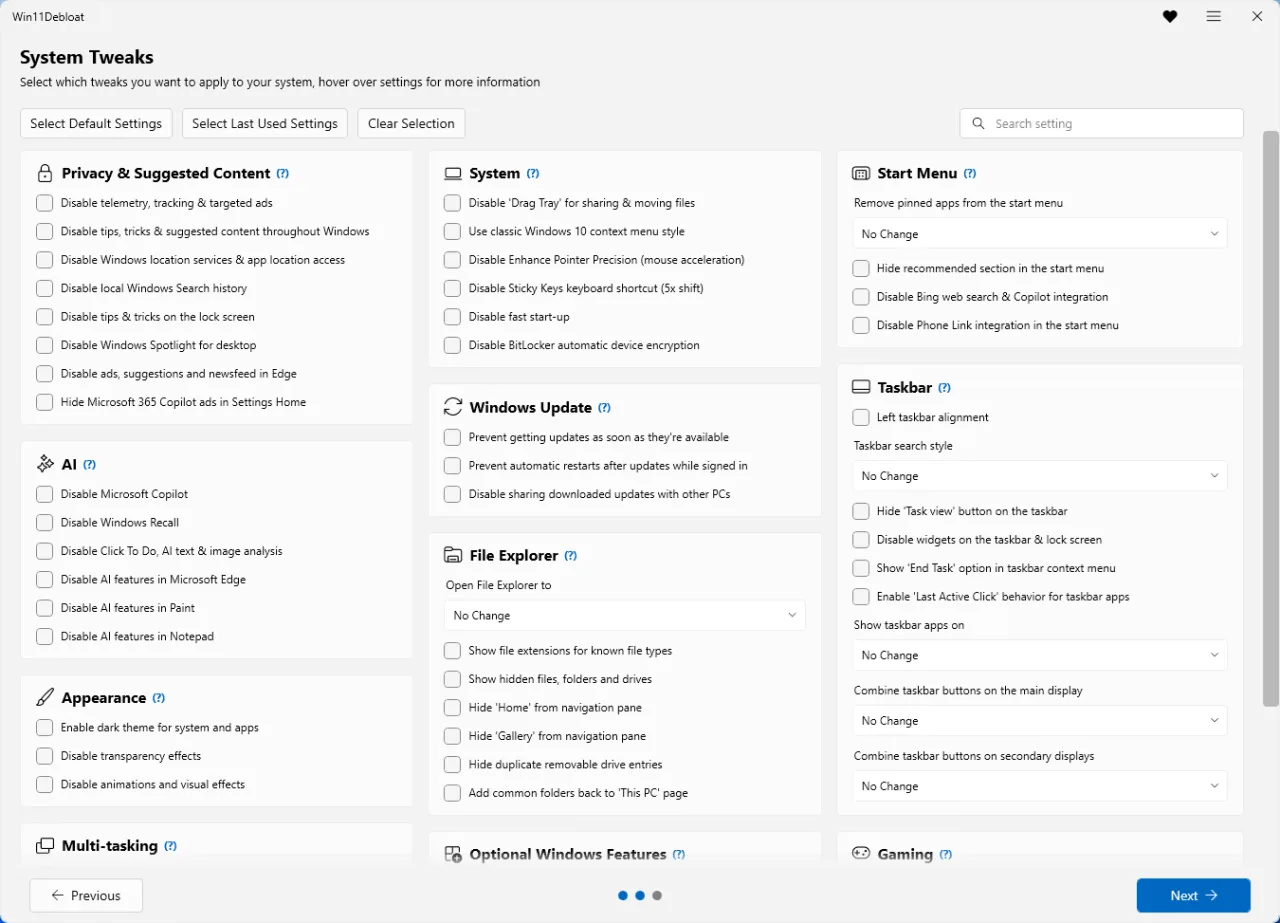
It is a lightweight Windows 11 debloating PowerShell-based script. If you have newly installed Windows 11, then you can install it to remove unnecessary apps, disable telemetry, and clean up unwanted features.
It helps in many ways to debloat your system. You can streamline system settings, improve performance, and enhance privacy with minimal effort. After you declutter your system, you can easily do any task without any hanging issues or continuous buffering.
Designed to run seamlessly in your terminal. No clunky GUIs, just a clean, interactive command-line interface that feels right at home.
Here are some amazing features of the win11debloating tool for Windows. You must explore them all:
It removes unnecessary UWP apps and unused Microsoft Store apps. It uses a reliable Windows app removal script to remove these unwanted apps, helping to free up storage and reduce system clutter.
Once you download, you can enjoy better privacy and fewer background data processes. This is possible because it disables Windows telemetry, diagnostic data collection, and targeted ads.
The tool also cleans up the Windows interface by disabling widgets, hiding the Chat icon, and removing the 3D Objects folder. In short, it simplifies the Windows context menu.
It helps to make local searches faster and more relevant. Basically, it removes the Bing search, Bing AI, and Cortana integration from the Windows search to show you better results.
Improve the performance of the system. Most importantly, when you remove unwanted start-up items and background services, you can boost boot time and battery life.
Supports various advanced customization features. These include interactive debloating, silent debloat mode, and custom PowerShell scripts. Access full control options for both beginners and experts.
Understand the key differences before you install.
| Feature | Win11Debloat | Win10Debloat |
|---|---|---|
| OS Support | Windows 11 & 10 | Windows 10 Only |
| Apps Removed | Xbox, Cortana, Widgets, Chat | Cortana, OneDrive, Xbox |
| Telemetry | Disable Telemetry, Bing AI | Disable Telemetry, Bing |
| Customization | Interactive & Silent Mode | Custom Scripts Only |
| Restore | Restore Points + Registry | Restore Points Optional |
By removing unused apps, you can improve your system performance and system responsiveness, creating more storage space.
Improves your system security and privacy by disabling extensive telemetry and data tracking.
Remove widgets, chat icons, and clutter from the taskbar to make the Windows experience better.
Follow these simple steps to install the app on your Windows 11 smoothly.
Search for and download it from a trusted source. Extract the ZIP file to any folder on your PC.
Open PowerShell as Administrator. Navigate to the extracted folder using the cd command.
Choose defaults or customize options according to your needs.
If you removed an app unintentionally, you can undo your action. Or, you can also reinstall the app from the Microsoft Store.
Ensure PowerShell is running as an Administrator, and the execution policy is set correctly (Unrestricted).
In some cases, the process remains incomplete. Run the script in slightly differently modes or check logs for better app removal.
Yes, the Win11 Debloat app is safe to use on a fresh Windows installation.
Yes! It removes background apps and telemetry and frees up system resources, which may result in smoother gaming performance.
No, you can reinstall the removed apps at any time from the Microsoft Store.
No! It does not block or break Windows updates. However, some removed features may interact with future major updates.
If you want a faster, cleaner, and more private Windows experience, then it is a must-have tool. It removes unnecessary apps, disables telemetry, which streamlines the system and improves work efficiency.
Moreover, with its customizable options and restore support, Win11 Debloating Tool provides many unique features. It offers a safe and effective way to debloat Windows 11 and take full control of your system. If you are also facing issues on your Windows 11, you must download it now.